
Built-in effects
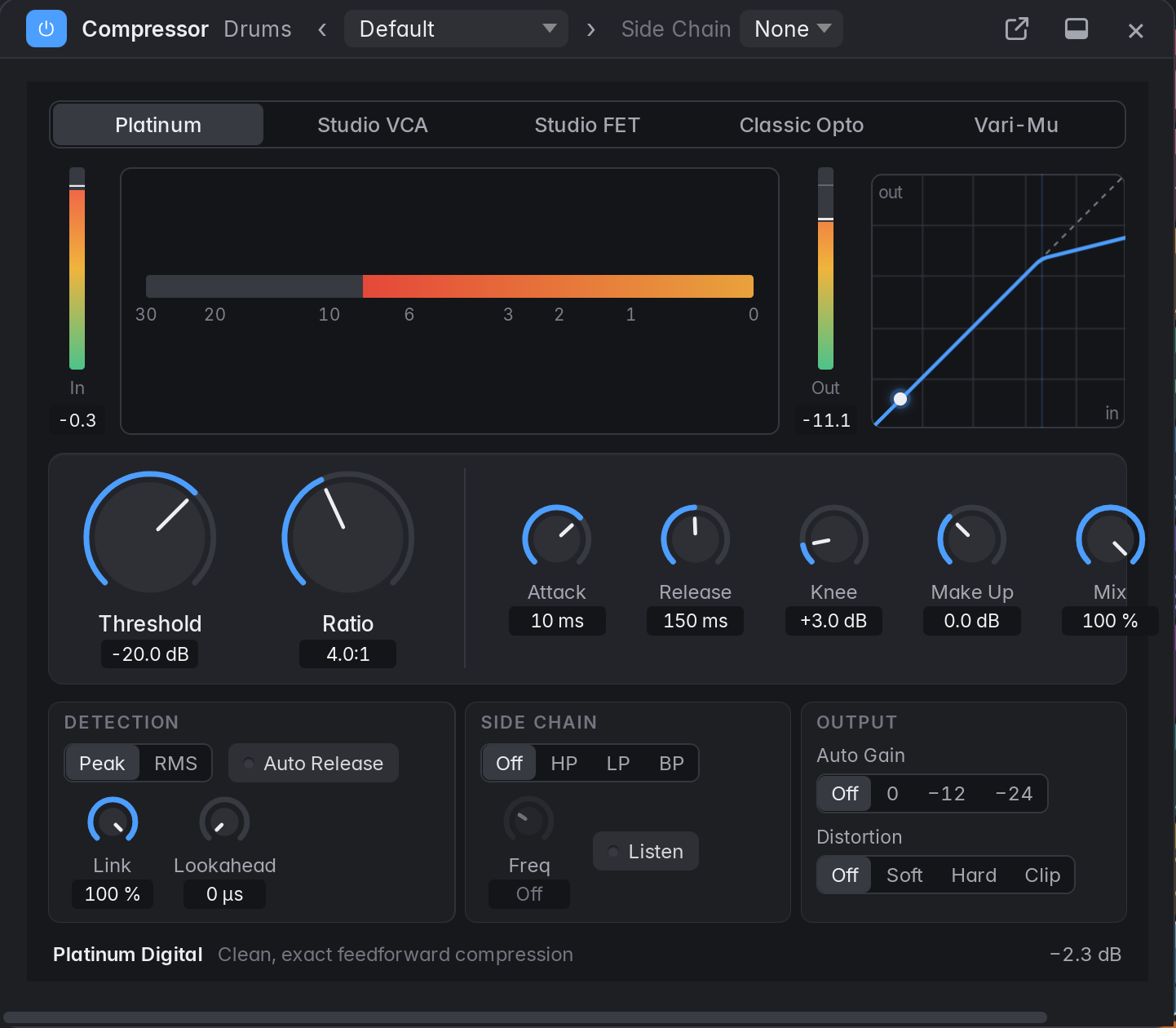
Marbble’s own effects load in any Audio FX slot like a plug-in: Compressor, Limiter, Noise Gate and De-Esser (Dynamics), Reverb, Delay, Chorus, Flanger, Phaser and Tremolo (Modulation), Overdrive and Distortion (Distortion), Linear Phase EQ (EQ), Gain (Utility), and Tuner and Loudness Meter (Metering). They are listed first, by category, in the slot menu and the Library.
- The panel: click the effect’s name in its slot to open its panel; click again, press Esc
or click × to close it. There is one panel per slot. The panel’s header has the power (bypass)
button, the effect and track names, the preset pop-up and, for effects with a side-chain, the
Side Chain pop-up.
- Docked (see General settings): panels open in the bottom section, where the Mixer and the Editors show, with a tab for each open panel. Drag the divider above to make the section taller; graphs and meters grow with it. Showing the Mixer or an Editor hides the panels but keeps them open: click a slot again to bring them back. Closing the last tab gives the section back to what it showed before.
- Floating (the default): the float button at the right of the dock’s bar takes a panel out into a window of its own (and the dock button in a window’s header puts it back). Drag a window by its title; drag its sides or bottom corners to resize it. A window can’t be made smaller than its controls; Marbble remembers the last size for each kind of effect.
- Separate windows: each panel opens in an OS window of its own, which you can move to another monitor (see Separate windows). Clicking the slot again closes it; the pop-in button in its bar puts it in the main window, floating.
- Esc closes the frontmost floating panel first, then the docked one on screen.
- Knobs: drag up and down (Shift for fine); double-click or Alt-click for the default; double-click the value under a knob to type one (“2.5k”, “-6 dB”, “1.2 s”). Every change is undoable, and a drag is one undo step.
- Meters show the effect’s levels; gain reduction meters hang down from the top.
- Automation: every parameter appears in the track’s automation lane menu under the effect’s name, and Touch, Latch and Write record moves of the panel’s knobs. While automation plays, the panel follows it.
- Latency: an effect with lookahead or oversampling reports it to delay compensation, so the track stays in time; the slot’s tooltip shows it.
- Freeze renders built-in effects like any plug-in; their settings come back on unfreeze.
- Side Chain: pick a track in the Side Chain pop-up and its output, instead of the effect’s own input, drives the detector: a kick opening a gate on a bass, a vocal ducking a pad. Pick None to go back. The source plays before the effect’s track, and loops are refused. Pre / Post beside the pop-up picks where the key leaves the source: Post (the default) after its fader and pan, so muting the source or pulling its fader down silences the key, as in Logic; Pre before them, so a trigger track with its fader all the way down still keys the effect. A pre-fader key still goes silent when the source is muted (or soloed out), like a pre-fader send. Delay compensation is the same either way. Bounces and freezes of the effect’s track play the source along, unheard, so the key is right. The key is taken as the source leaves its plug-ins; if the source’s own plug-ins add latency, the key arrives that much late. The Compressor, Noise Gate and De-Esser have a side-chain.
- Copy and paste and dragging between slots work as for any plug-in (see Plug-ins).