
Marbble Sampler
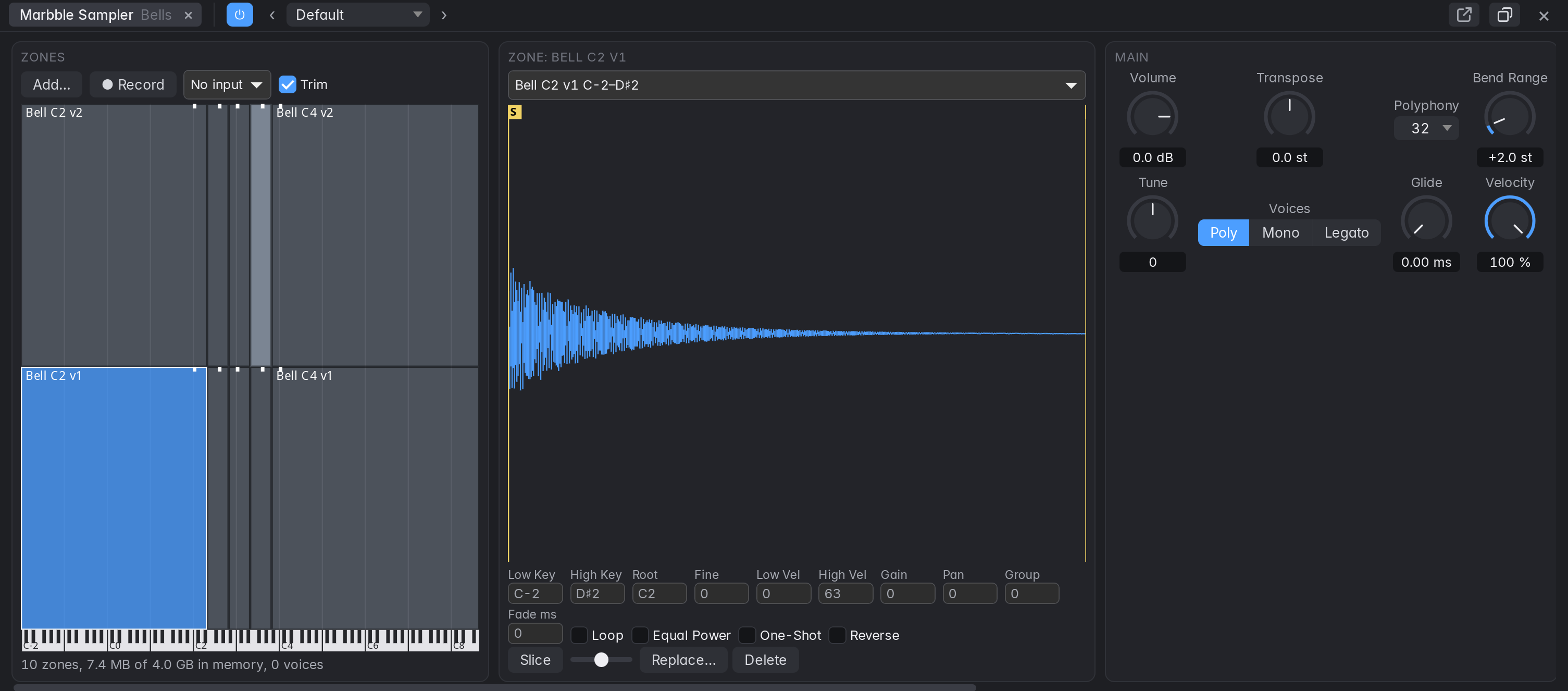
Your own instrument from your own sounds. Put Marbble Sampler on a software instrument track, from the instrument slot, the New Tracks dialog or the Library (under Samplers). Its panel docks at the bottom: zones on the left, the selected zone’s waveform and settings next, then the instrument’s sections in a row, scrolling sideways if the dock is narrow. It has been tested by measurement only: nobody has listened to it yet.
Getting a sound in
- Drop a file on the panel, or choose Add…. One file takes the whole keyboard, with its pitch on C3 unless its name or file says otherwise, and plays right away. Dropped on the zone map, it sits on that one key.
- Several files at once map themselves when every one has a note in its name (
Piano_C3,Bass F#2, using C3 for middle C), splitting the keyboard between them. Files on the same note become velocity layers, ordered by a layer in the name (v1,v2, orpp,mf,ff), andrr1,rr2become round-robin turns. Otherwise they go up one key each. - Record: choose an input, press Record, play or sing, and press Stop. It’s playable at once. Trim moves the zone’s start and end in past the silence; the file keeps everything. The transport doesn’t start. You don’t hear the input through Marbble while this runs. A take with nothing on it is refused, and says so.
- From the arrangement: an audio region’s menu has Convert to Sampler Track. Whole Region puts one key in charge of it, with a MIDI note playing it where it was, and mutes the original. Slice at Transients gives each hit its own key from C1 up, with MIDI playing them in time, so you can rearrange them. The region’s gain comes along; its fades and playback parameters don’t.
- An SFZ file: drop or choose it, and it replaces the zones. Marbble reads regions, groups, key and velocity ranges, loops, tune, volume, pan, envelopes and sequence positions. Whatever else the file asks for is ignored and listed under the zone map, for instance filters, key switches and release samples. SoundFonts (.sf2) aren’t read.
Building an instrument
- The zone map has keys across and velocity up. A zone is a box: drag it to move it, with its root, or its edges to change its keys and velocities. Play the keys under the map to try it. Red zones can’t play.
- The waveform: drag S and E for where the zone starts and ends, L and R for its loop. Scroll to zoom, double-click to see all of it. The loop is shaded, with its crossfade as a wedge.
- The zone’s settings are next to its waveform: key and velocity ranges, Root, Fine (cents), Gain, Pan, Group (zones with the same round-robin number on the same key and velocity take turns), Loop, Fade (the loop’s crossfade, in ms, which blends in the audio before the loop’s start, so it needs some there), Equal Power (for a loop whose two sides don’t line up; leave it off for anything with a pitch), One-Shot (plays to its end whatever the key does, until the song stops), and Reverse.
- Slice cuts the selected zone at its transients, one per key from C1. The slider is how easily it finds a hit.
- The sections apply to the whole instrument: Main (volume, tune, Poly, Mono or Legato, polyphony up to 64, glide, bend range, velocity), Amp Envelope, Filter with Filter Envelope, and LFO to pitch and filter, free or synced, with the mod wheel adding vibrato. They automate and learn MIDI as any plug-in’s do. An SFZ’s zones keep their own amp envelopes.
Keeping it
- Save Preset… in the panel’s preset menu saves the instrument with a copy of all its samples, in a folder of its own at
~/Music/Marbble Instruments, made the first time. It’s then listed under User in every project, and loading it copies the samples into that project. Share the folder to share the instrument. - In a project, samples are copied into its
Samplesfolder when they arrive, so moving the project or deleting the original changes nothing. A library takes its size on disk again. - A missing sample is named when the project opens and shows red in the panel, while everything else plays. Replace… points its zone at another file. This also resets the zone’s start, end and loop.
- Factory presets shape the sound (a slow pad, a pluck, a filter) and leave your zones alone. A channel strip setting or template keeps a sampler’s zones but not its samples; save an instrument to carry it between projects.
Limits
Samples play from memory, with no disk streaming, up to 4 GB for the session (about 6 hours of 48 kHz stereo, with the panel showing how much is used). Past that a sample refuses to load and says why, and the rest play. Files at any sample rate and bit depth play in tune. Full polyphony, 64 stereo voices, took about 10 % of one core in a test, 27 % through the ladder filter. Playing far above a sample’s pitch costs more: 8 voices at 4 octaves up took about 5.5 %.